Only Coaches are permitted access to the full functionality of the app, such as entering games, adding players, and adding pitch counts.
In order for coaches to access the app, you must be on an approved Baseball Ontario roster with a valid and unique email address. Two coaches cannot share the same email address in the system. Please email [email protected] for support.
Pitch Count App User Guide
Adding a New Game
- From the main screen of Pitch Count, tap your team name under My Teams. Select the Games tab and tap ⊕ ADD GAME
- Enter the Game Date and Game Time.
- Select the Visiting Team.
| Pro Tip: You can search for the correct team by team number, team name, or filter by division). |
- Add the game Location.
- Tap Save.
Remember: Home Team must enter pitch counts for both teams.
Adding Pitch Counts Live-In-Game
Capturing pitch counts live-in-game is the preferred method of counting pitches. This eliminates the risk of pitchers exceeding pitch counts, using pitchers who are in recovery, and alerts both coaches to potential rule violations during the game.
- From the Games tab, select the game you wish to count pitches for.
- Tap . BEGIN PITCH COUNT .
- Select the pitcher you wish to start the Top of the 1st inning.
- You may be asked to enter the pitcher's jersey number, enter that here (you can change it later) and tap Update, otherwise Skip.
- Tap the large blue + sign to add pitches as they are delivered.
| Pro Tip:All pitches delivered to the batter must be counted as a pitch, this includes balks that are thrown to the batter. A balk that is thrown to a base, or a balk that is not thrown is not counted. |
- The app will display in large numbers how many pitches have been thrown this inning by this pitcher. This will turn amber when the pitcher has 10 pitches left until they hit their daily maximum and red when they hit their daily maximum.
- Above the pitches thrown this inning, the app displays a countdown of how many pitches this pitcher has remaining today. This will turn amber when the pitcher has 10 pitches left until they hit their daily maximum and red when they hit their daily maximum.
- You can edit how many pitches have been thrown in the inning by selecting the pencil icon above the pitches remaining today.
- Tap . Next . to select a relief pitcher, or to move on to the next half-inning.
- When the game is complete, tap the back button on your device to go back to the main screen for the game.
- Tap . END GAME AND REQUEST APPROVAL . to finalize the game.
Note: When you request approval, the game is locked and requires verification from the visiting team.
Adding Pitch Counts Post-Game
If you are unable to capture pitch counts live-in-game using the app, pitch counts may be captured on paper and entered in the app post-game.
- From the Games tab, select the game you wish to count pitches for.
- Tap . ADD TOTAL PITCH COUNT .
- Select the first team you wish to add pitches for.
- Select the pitcher you wish to add pitches for.
- Enter the total number of pitches thrown by that pitcher.
- Tap UPDATE
- Repeat steps 2-6 until all pitches have been entered for both teams.
- When the game is complete, tap the back button on your device to go back to the main screen for the game.
- Tap . END GAME AND REQUEST APPROVAL . to finalize the game.
Note: When you request approval, the game is locked and requires verification from the visiting team.
Adding a Call-Up Player to a Team
- From the Roster tab, tap ⊕ ADD PLAYER
- Search the player's first and last name in the system. Note: The player you wish to add must be on an approved Baseball Ontario roster uploaded into the Pitch Count database already in order to add them to a team.
- Players matching the name searched will populate in the Search Results screen with the team name that they are a full-time roster player on. Select the correct player from the list.
- A confirmation pop-up will appear, tap ADD PLAYER if you wish to add this player to your team.
Approving or Challenging Pitch Counts
Once the Home Team has submitted a pitch count for approval, the Visiting Team must verify the pitch count is accurate within 5 days of submission.
All coaches on the team will receive a notification that a game approval has been requested.
- Log in to the Pitch Count app.
- Approval Requests will display at the top of the app, tap the game you wish to verify.
- Verify that all pitch counts have been entered correctly.
- Tap . APPROVE PITCH COUNTS . if the pitch counts were entered correctly.
- Tap . CHALLENGE PITCH COUNTS . if there are corrections that need to be made on the pitch counts.
- When you challenge the pitch count, you must enter a message to the Home Team coach why you are challenging the pitch count.
- The game status will change to CHALLENGED and the Home Team can then edit the pitch counts and resubmit for approval.
| Pro Tip:If a game is not verified, the app will auto-verify the game after 5 days. |
Change Uniform Number
- Log in to the Pitch Count app.
- Select the team you wish to edit under the MY TEAMS header.
- Select the ROSTER tab at the top.
- Android: Tap the ellipsis (three vertical dots) to the right of the player's name on the player card and tap Edit. Enter the new uniform number and tap UPDATE.
- Apple: Swipe left on the player card that you wish to edit and tap Edit. Enter the uniform number and tap Save.
Checking Pitcher Availability
- From the main screen, select your team under the MY TEAMS header.
- Select the ROSTER tab.
- Each player on the roster will have a player card displayed on this tab.
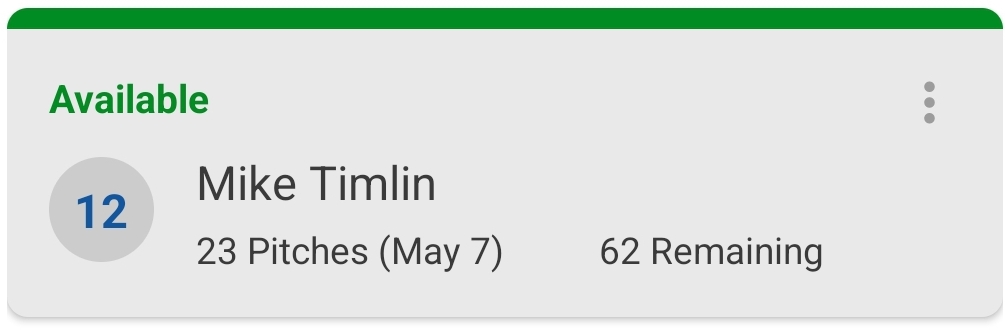
- The player's jersey number, if entered, is displayed in the circle next to the player's name. The number of pitches thrown on the pitcher's last outing and the date they last threw will appear on this card. If the pitcher has any pitches remaining today, they will also appear on this card.
- Pitcher's statuses are colour-coded to help identify if a player is able to pitch today:
- Available - Pitcher is available to pitch today.
- In Recovery - Pitcher is not available to pitch today. The next available date the pitcher is available to pitch will display on the card.
Deleting a Game
For a game to be deleted, there can be no pitcher attached to the game, please see Deleting Pitch Counts to remove all pitchers from the game prior to deleting the game.
- Ensure all pitchers have been removed from the game.
- From the games screen select the game you wish to delete.
- Android: Tap the pencil icon in the top right corner of the game screen and select . DELETE .
- Apple: Tap the Edit button in the top right corner of the game screen and select Remove Game
Deleting Pitch Counts
Pitch Counts for pitchers who have pitches in a game can be removed if they have been entered in error. If a game has been entered in error (or in duplicate), this process must be completed for all pitchers before the game can be deleted.
Note: This process can only be completed for games that are In Progress, Challenged, or Reopened status.
Deleting entire pitch counts for an inning for a pitcher can be done within the game screen.
- Android: Tap the ellipsis (three vertical dots) next to the pitch count you wish to delete and tap delete.
- Apple: Swipe left over the player's pitch count you wish to delete and tap . Delete .
- On the confirmation screen, confirm you want to delete the pitch count for this pitcher.
Editing a Game's Pitch Counts After Submitting for Approval (Reopen)
A game can be edited after it has been approved if has been discovered that the pitch counts are incorrect. Either team can initiate this process, but only the Home Team can edit the pitch counts once the game has been re-opened. Only games that have been verified can be reopened with this process. To initiate the reopening of the game:
- From the Games screen, tap the verified game you wish to reopen.
- Tap . REQUEST TO REOPEN GAME .
- Enter a message to the opposing coach to request the game to be reopened.
- Tap Request to Reopen
- The opposing coach will receive a notification that the game has been requested to be reopened. The opposing coach must then open the app and choose either Reopen Game or Deny Reopen Request.
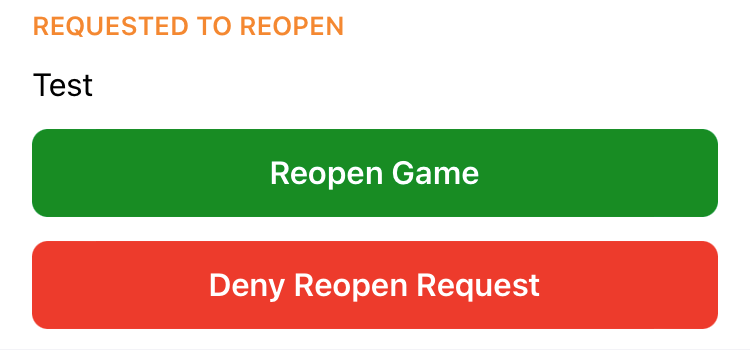
- If the game is reopened, the Home Team coach can edit the pitch counts and resubmit for approval.
- If the reopen request is denied, the game will automatically revert to Verified status.
[TOP]
Game Statuses
| STATUS |
DESCRIPTION |
| No Status |
Games with no status have not yet been started. |
| In Progress |
Games with In Progress status have been started but have not yet been submitted for approval. |
| Approval Requested |
Games with Approval Requested Status have been submitted to the opponent for approval but have not yet been challenged or approved. |
| Challenged |
Game was submitted by the Home Team but the Visiting Coach challenged the pitch count. Home Team must edit and/or re-submit. |
| Requested to Reopen |
Game was verified but one of the teams requested the game to be reopened and edited. |
| Reopened |
Request to reopen the game was approved and editing is in progress. |
| Verified |
Game has been approved and pitch counts verified. |
No Opponent Games (High School/Ad Hoc Appearance)
All pitching appearances for Baseball Ontario rostered pitchers should be captured in the Pitch Count app, including if the player plays on a non-Baseball Ontario team (ie: High School, IBL, Senior, etc).
To do this, the coach of the player's team should create a game against no opponent and enter the pitcher's total pitch count for the game. The final score can be entered as 0-0 and the defensive innings as 1 inning each.
When the game is submitted for approval, it will be auto-verified by the system after 5 days.
Similarly, if a 22U or 18U team is playing a Senior team, the 22U/18U team would enter no opponent because Senior teams do not have a pitch count limitation. In this case, enter the final score and defensive innings correctly.
Note: This is the only situation where it is permissable for only one team to enter a pitch count.
Registration to Pitch Count App
Only coaches on a current Baseball Ontario approved roster can access the Pitch Count app's counting tools.
- Ensure your coaches email addresses are valid and accurate on the Baseball Ontario roster submission form.
- Submit your roster to Baseball Ontario.
- Await approval from Affiliated Association.
- Once approved, your roster will be uploaded into the Pitch Count app and you will receive an email from Baseball Ontario Support with the subject Welcome to Baseball Ontario.
- Download the app from the Google Play Store or Apple App Store before you tap the Join button.
- Tap the join button.
- Create a password for the app.
- Sign into the app using the login credentials you just created.
| Pro Tip:Once you have signed in to the app, if you are unable to seeMy Teamsyou are likely signed in as a Guest. Sign out and sign back in. |
Signing Into the App
Depending on your access, you can sign into the app in one of two ways:
Coaches: Sign into the app using the credentials created through the rostering process (see Registration to Pitch Count App).
Players/Parents/Guests: Tap . ENTER AS GUEST . on the sign in screen to enter the app as a guest. You can search for your favourite teams and tap the team you want to follow, then tap the star at the top right to save them as a Favourite. Once you have saved at least one team as a favourite, the app will display My Favorites at the top of the app the next time you come back to the app!
Statistics
Pitching Statistics are kept for each player on your team. You can view historical stats showing how many games, innings, and pitches each pitcher has thrown in the last 4 days, 1 week, one month, this season, and all time.
- From the main screen, tap the team you wish to view stats on.
- Tap the STATS tab.
- All stats will display on the screen for each pitcher on your roster.